Device Posture Policies
Ensure every device meets your security baseline before it gets credentials
Vouch can collect security signals from developer devices at login and enforce policies against them. If a device does not meet your organization’s security baseline, Vouch denies access and tells the developer exactly what to fix.
This means you no longer need to trust that developers have configured their machines correctly — Vouch verifies it on every authentication.
How it works
- Signal collection. When a developer runs
vouch login, the CLI automatically detects the security posture of the local machine — disk encryption, firewall, screen lock, endpoint protection, and more. This takes under 2 seconds and requires no elevated privileges. - Transmission. The posture data is sent to the Vouch server as structured RFC 9396
authorization_detailsalongside the FIDO2 assertion. - Policy evaluation. The server evaluates the posture data against your organization’s active policies. All active policies must pass (AND logic).
- Result. If all policies pass, the session is issued normally. If any policy fails, access is denied and the developer receives OS-specific remediation guidance.
vouch login
  → CLI collects device posture signals (< 2 seconds)
  → FIDO2 assertion + posture data sent to server
  → Server evaluates posture against active policies
  → All pass → session issued
  → Any fail → access denied + remediation guidance
Fail-closed enforcement
Posture policies use fail-closed enforcement. If a developer’s CLI does not send posture data (e.g., running an older CLI version), active policies deny access. This prevents bypassing policies by downgrading the CLI.
Collected signals
The Vouch CLI detects the following signals on macOS, Linux, and Windows. All detection is best-effort and does not require administrator privileges.
| Signal | Description | macOS | Linux | Windows |
|---|---|---|---|---|
| Disk encryption | Whether the system disk is encrypted | FileVault | LUKS | BitLocker |
| Firewall | Whether the OS firewall is enabled | Application Firewall | iptables / nftables | Windows Firewall |
| Screen lock | Whether an idle screen lock is configured | System Preferences | GNOME / KDE Plasma | Lock screen settings |
| Secure boot | Whether secure boot is active | Apple Silicon (always) | UEFI Secure Boot | UEFI Secure Boot |
| TPM | Whether a Trusted Platform Module is present | N/A | TPM 2.0 | TPM 2.0 |
| EDR | Endpoint detection & response agent installed | CrowdStrike, SentinelOne, Carbon Black, Microsoft Defender | CrowdStrike, SentinelOne, Carbon Black, Microsoft Defender | CrowdStrike, SentinelOne, Carbon Black, Microsoft Defender |
| MDM | Mobile device management agent installed | Jamf, Kandji, Intune | Intune | Intune |
| OS auto-update | Whether automatic OS updates are enabled | SoftwareUpdate | unattended-upgrades | Windows Update |
| Access control | MAC enforcement status | System Integrity Protection (SIP) / Gatekeeper | SELinux / AppArmor | N/A |
| OS info | Distribution, version, build, architecture | Detected | Detected | Detected |
| System uptime | Time since last reboot | Detected | Detected | Detected |
| Execution context | Elevated privileges, TTY presence, parent process | Detected | Detected | Detected |
Inspecting device posture
Use the vouch posture command to see what the Vouch CLI detects on your machine, without logging in.
Text output (default)
vouch posture
Device Posture (v1)
  OS:              macOS 15.3.1 (darwin)
  Architecture:    aarch64
  Disk encryption: enabled (FileVault)
  Firewall:        enabled (Application Firewall)
  Screen lock:     enabled (300s idle timeout)
  Secure boot:     enabled
  SIP:             enabled
  EDR:             CrowdStrike
  MDM:             Jamf
  Auto-update:     enabled (SoftwareUpdate)
  Uptime:          3d 4h 22m
JSON output
vouch posture --format json
This outputs the exact authorization_details JSON that would be sent to the server during login:
[
  {
    "type": "device_posture",
    "posture_version": 1,
    "os": "darwin",
    "os_version": "15.3.1",
    "os_distribution": "macOS",
    "arch": "aarch64",
    "disk_encryption_enabled": true,
    "disk_encryption_technology": "FileVault",
    "firewall_enabled": true,
    "firewall_technology": "Application Firewall",
    "screen_lock_enabled": true,
    "screen_lock_idle_timeout_secs": 300,
    "secure_boot_enabled": true,
    "sip_enabled": true,
    "tpm_present": false,
    "edr": ["CrowdStrike"],
    "mdm": ["Jamf"],
    "auto_update_enabled": true,
    "auto_update_technology": "SoftwareUpdate",
    "access_control_enforcing": true,
    "access_control_technology": "SIP",
    "uptime_secs": 273720,
    "elevated": false,
    "tty": true,
    "parent_process": "zsh",
    "cli_version": "0.28.0"
  }
]
Use vouch posture --format json to debug why a policy might be failing — it shows the exact data the server evaluates.
Pre-configured policies
Vouch provides six pre-configured policies that cover common security baselines. Activate them from the admin dashboard — no CEL knowledge required.
Disk encryption
Requires full-disk encryption (FileVault, LUKS, or BitLocker) to be enabled.
Why it matters: An unencrypted laptop that is lost or stolen exposes every file on disk — cached credentials, source code, configuration files, and session tokens.
Remediation:
- macOS: System Settings → Privacy & Security → FileVault → Turn On
- Linux: Reinstall with LUKS full-disk encryption, or use
cryptsetupto encrypt partitions - Windows: Settings → Privacy & security → Device encryption, or enable BitLocker via Group Policy
Firewall
Requires the OS-level firewall to be active.
Why it matters: A disabled firewall exposes local services (development servers, databases, debug ports) to the network.
Remediation:
- macOS: System Settings → Network → Firewall → Turn On
- Linux: Enable
ufw(sudo ufw enable) or configureiptables/nftables - Windows: Settings → Privacy & security → Windows Security → Firewall & network protection
Screen lock
Requires an idle screen lock to be configured.
Why it matters: An unlocked, unattended machine gives anyone physical access to active sessions and credentials.
Remediation:
- macOS: System Settings → Lock Screen → set “Require password after screen saver begins” to a short interval
- Linux: Configure screen lock in your desktop environment settings (GNOME Settings → Privacy → Screen Lock, or KDE System Settings → Screen Locking)
- Windows: Settings → Accounts → Sign-in options → configure “Require sign-in”
Endpoint protection
Requires at least one endpoint detection and response (EDR) agent to be running.
Why it matters: EDR agents detect and respond to malware, ransomware, and other threats that could compromise developer credentials or inject into build pipelines.
Detected agents: CrowdStrike, SentinelOne, Carbon Black, Microsoft Defender for Endpoint.
Platform integrity
Requires platform-specific integrity protections to be active: System Integrity Protection (SIP) and Gatekeeper on macOS, SELinux or AppArmor enforcement on Linux.
Why it matters: Disabling platform integrity protections makes it easier for malware to persist, modify system binaries, and tamper with security controls.
Remediation:
- macOS: Reboot into Recovery Mode and run
csrutil enableto re-enable SIP. Ensure Gatekeeper is enabled viaspctl --master-enable. - Linux: Set SELinux to enforcing (
sudo setenforce 1and update/etc/selinux/config), or ensure AppArmor profiles are loaded and enforcing.
OS recency
Requires the operating system to have automatic updates enabled.
Why it matters: Machines without automatic updates miss critical security patches, leaving known vulnerabilities exploitable.
Remediation:
- macOS: System Settings → General → Software Update → Automatic Updates → enable all options
- Linux: Install and enable
unattended-upgrades(Debian/Ubuntu) or equivalent - Windows: Settings → Windows Update → Advanced options → enable automatic updates
Custom policies with CEL
For requirements that go beyond the pre-configured policies, you can write custom policies using the Common Expression Language (CEL). CEL is a lightweight, non-Turing-complete expression language designed for policy evaluation.
Available fields
Custom CEL expressions can reference any posture field:
| Field | Type | Description |
|---|---|---|
os | string | Operating system: "darwin", "linux", "windows" |
os_version | string | OS version number |
os_distribution | string | OS distribution name |
arch | string | CPU architecture: "aarch64", "x86_64" |
disk_encryption_enabled | bool | Full-disk encryption active |
firewall_enabled | bool | OS firewall active |
screen_lock_enabled | bool | Screen lock configured |
screen_lock_idle_timeout_secs | int | Screen lock idle timeout in seconds |
secure_boot_enabled | bool | Secure boot active |
sip_enabled | bool | System Integrity Protection active (macOS) |
tpm_present | bool | TPM chip detected |
tpm_version | string | TPM version (e.g., "2.0") |
edr | list(string) | EDR agent names detected |
mdm | list(string) | MDM agent names detected |
auto_update_enabled | bool | Automatic OS updates enabled |
access_control_enforcing | bool | MAC enforcement active (SELinux/AppArmor/SIP) |
uptime_secs | int | System uptime in seconds |
elevated | bool | Running with elevated privileges |
tty | bool | Running in a terminal |
cli_version | string | Vouch CLI version |
Example expressions
Require CrowdStrike specifically:
"CrowdStrike" in edr
Require any EDR on macOS, but not on Linux (where agents may not be available):
os != "darwin" || edr.size() > 0
Enforce a maximum screen lock timeout of 5 minutes (300 seconds):
screen_lock_enabled && screen_lock_idle_timeout_secs <= 300
Require machines to have rebooted within the last 7 days (to pick up kernel updates):
uptime_secs < 604800
Require MDM enrollment:
mdm.size() > 0
Block logins from elevated (root/admin) shells:
!elevated
Combine multiple conditions in a single policy:
disk_encryption_enabled && firewall_enabled && edr.size() > 0 && uptime_secs < 604800
Validating expressions
The admin dashboard validates CEL syntax in real time and dry-runs the expression against your device’s posture data. The field reference table on the policies page lists all available fields and their current values from your device. Always validate custom policies before enabling them — a syntax error in an active policy will deny all logins (fail-closed).
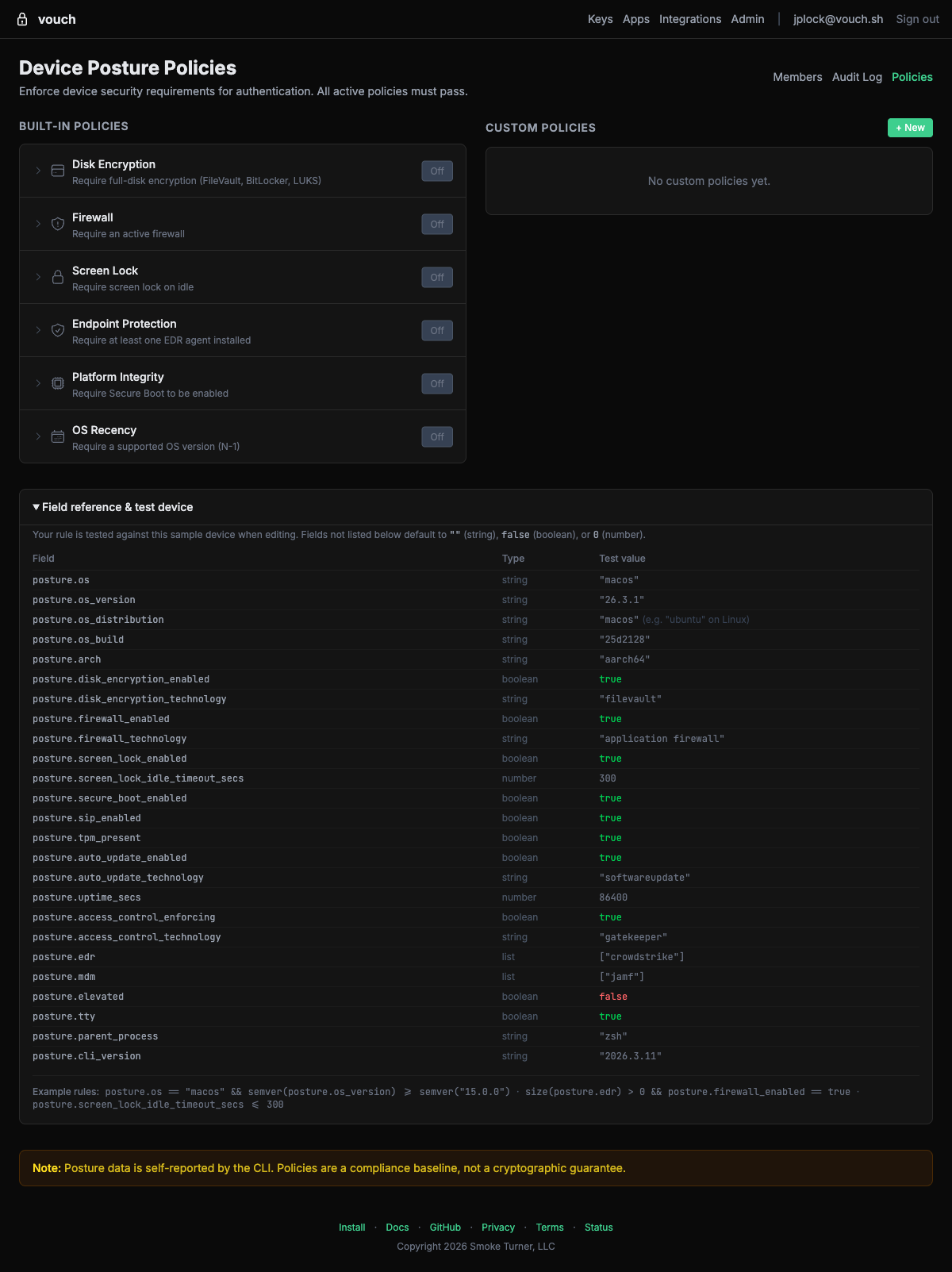
Managing policies
Policies are managed from the Vouch admin dashboard by organization administrators.
Activating a pre-configured policy
- Open the Vouch admin dashboard and navigate to Policies.
- You will see the six pre-configured policies listed with toggle controls.
- Toggle a policy to Active to begin enforcement.
- The policy takes effect immediately for all subsequent logins.
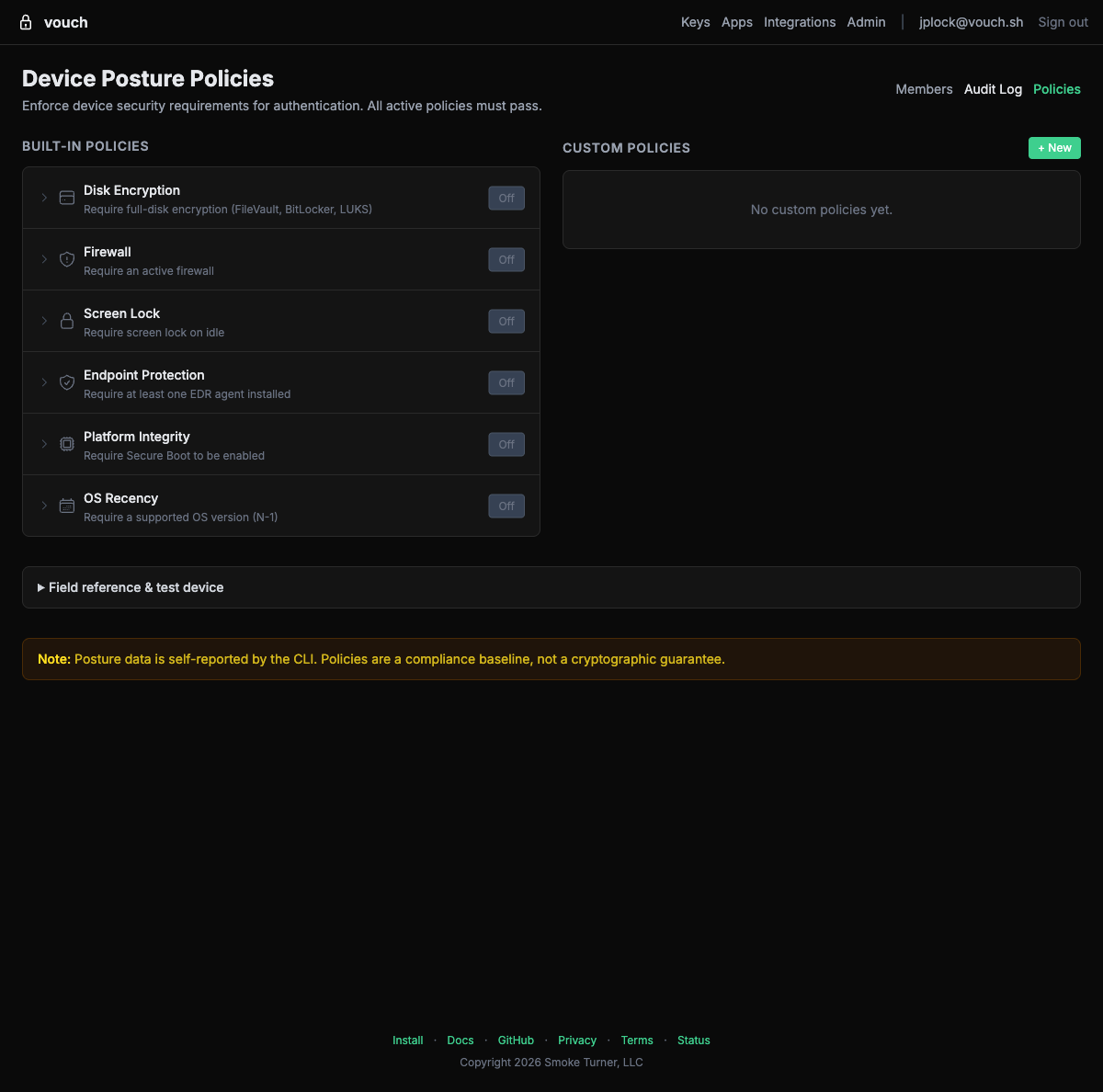
Creating a custom policy
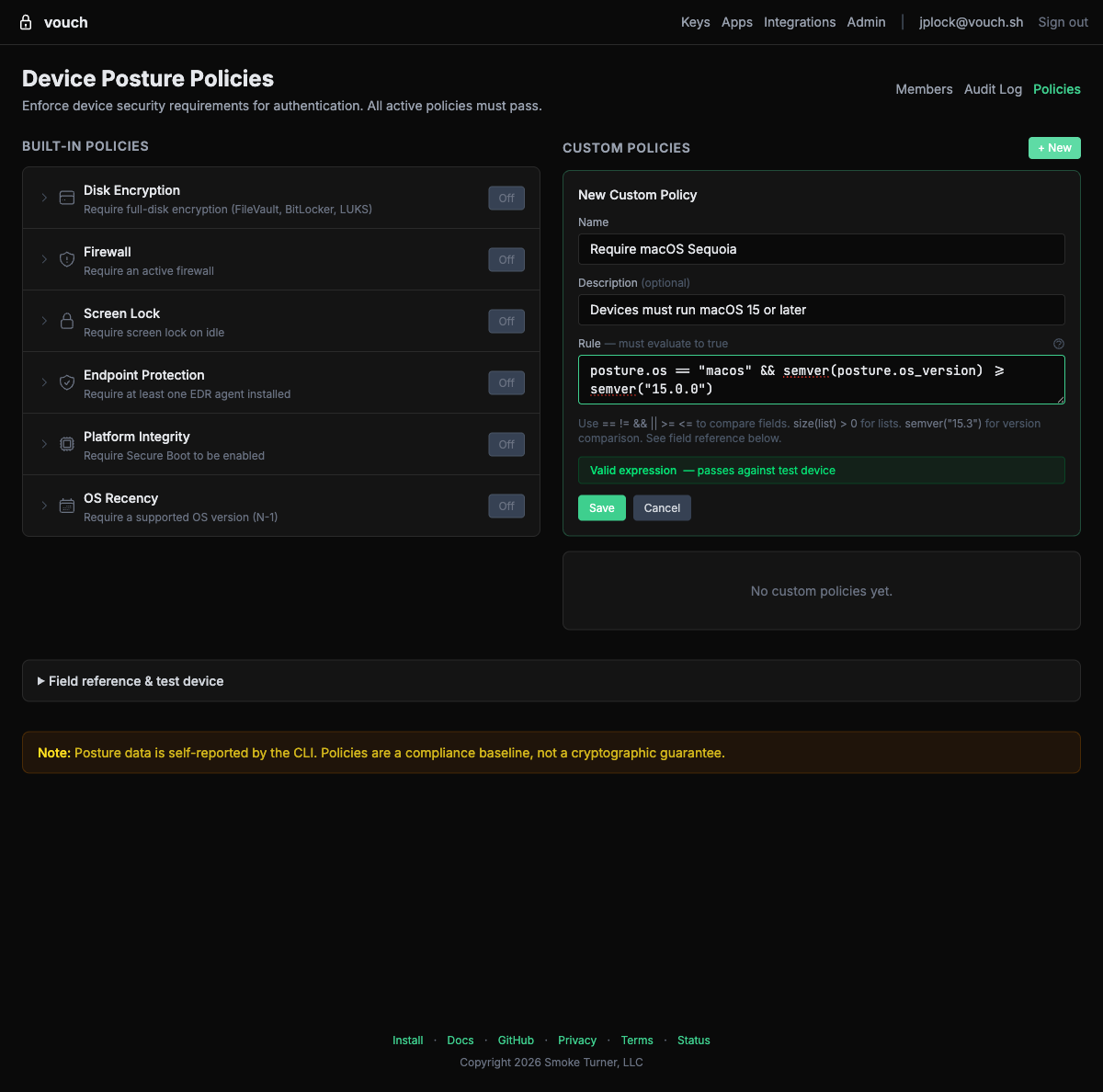
- In the Policies page, click + New under Custom Policies.
- Enter a name and description for the policy.
- Write a CEL expression in the rule editor.
- The editor validates your expression in real time and tests it against your device’s posture data.
- Save and activate the policy.
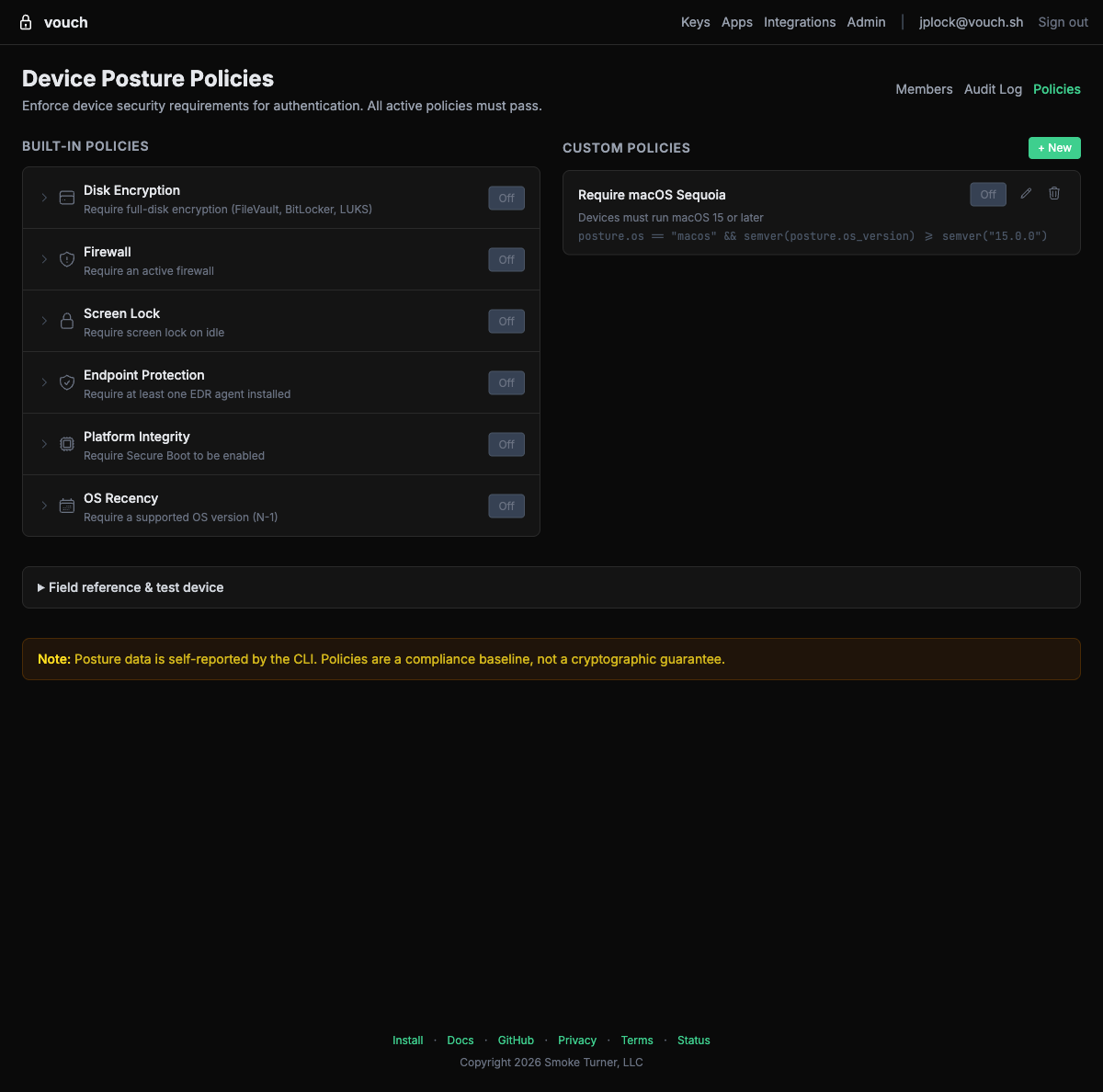
Once saved, custom policies appear alongside the built-in policies with controls to toggle, edit, or delete them:
Policy limits
- A maximum of 5 policies can be active at the same time.
- All active policies are evaluated using AND logic — every active policy must pass for login to succeed.
- Policies apply to all members of the organization. There is no per-user or per-group policy targeting.
Deactivating a policy
Toggle a policy to Inactive from the Policies page. The policy is retained but no longer evaluated during login. This is useful for temporarily relaxing requirements during an incident or rollout.
Practical examples
Example 1: Basic security baseline
Activate three pre-configured policies to establish a minimum security standard:
- Disk encryption — Protects data at rest on lost or stolen devices.
- Firewall — Prevents unauthorized network access to local services.
- Screen lock — Protects unattended machines.
This is a good starting point for most teams. Developers who fail any check see specific remediation instructions for their operating system.
Example 2: Regulated environment
For teams subject to SOC 2, HIPAA, or similar compliance frameworks, activate all six pre-configured policies:
- Disk encryption
- Firewall
- Screen lock
- Endpoint protection (EDR)
- Platform integrity
- OS recency
This ensures every developer machine meets a comprehensive security baseline before it can obtain credentials for production infrastructure.
Example 3: Contractor restrictions
If contractors use personal machines that may not have your corporate EDR, create a custom policy that requires MDM enrollment instead:
mdm.size() > 0
This verifies the device is managed by your organization without requiring a specific EDR product.
Example 4: Enforce recent reboots for kernel updates
After a critical kernel vulnerability (like a zero-day), temporarily add a custom policy requiring a recent reboot:
uptime_secs < 259200
This requires all machines to have rebooted within the last 3 days (259,200 seconds), ensuring kernel patches are loaded. Deactivate the policy once the patch cycle is complete.
Example 5: Platform-specific requirements
Create a custom policy that applies different rules per operating system:
(os == "darwin" && sip_enabled && disk_encryption_enabled) ||
(os == "linux" && access_control_enforcing && disk_encryption_enabled) ||
(os == "windows" && secure_boot_enabled && tpm_present && disk_encryption_enabled)
This enforces platform-appropriate integrity checks: SIP on macOS, SELinux/AppArmor on Linux, and Secure Boot + TPM on Windows — plus disk encryption on all platforms.
What developers see
When a posture policy fails, the Vouch CLI displays a clear error message with OS-specific remediation instructions:
$ vouch login
🔑 Touch your YubiKey...
✓ Identity verified

✗ Device posture check failed

  Policy: Disk encryption required
  Status: disk encryption is not enabled

  To fix this on macOS:
    System Settings → Privacy & Security → FileVault → Turn On

  Contact your administrator if you believe this is an error.
The error message includes:
- Which policy failed
- The current device state
- Step-by-step remediation instructions specific to the developer’s operating system
Developers can use vouch posture to inspect their device’s posture at any time without attempting a login.
FAQ
Does posture collection slow down login?
No. Posture collection runs in parallel with the FIDO2 assertion and has a 2-second timeout. If collection takes longer than 2 seconds, login proceeds without posture data — but if active policies exist, this triggers fail-closed enforcement and access is denied.
Can developers bypass posture checks?
No. Posture data is evaluated server-side. The CLI cannot skip collection (the server enforces fail-closed), and the posture data cannot be spoofed because it is sent alongside the FIDO2 hardware assertion over TLS.
Do I need to update the CLI?
Yes. Developers must be running a version of the Vouch CLI that supports posture collection (v2026.3.11 or later). Older CLI versions do not send posture data, and active policies will deny access due to fail-closed enforcement.
What if a developer runs Linux without a desktop environment?
Signal detection is best-effort. On headless Linux machines, screen lock detection returns false (no desktop environment to lock). If you activate the screen lock policy, consider creating a custom policy that exempts headless environments:
screen_lock_enabled || !tty
Can I test policies before enforcing them?
Yes. The admin dashboard’s Validate feature lets you check CEL syntax and dry-run expressions against sample posture data. You can also ask developers to run vouch posture --format json and share the output to verify their machines would pass before you activate a policy.