Device Posture Policies
Ensure every device meets your security baseline before it gets credentials
Vouch can collect security signals from developer devices at login and enforce policies against them. If a device does not meet your organization’s security baseline, Vouch denies access and reports the failing checks with remediation instructions.
Policies also cover timing: a policy can require a recent hardware login before workload credentials are issued, cap how many tokens a user obtains per hour, or refuse credentials after a logout. These read the user’s recent authentication history rather than their device.
Device configuration is verified on every authentication rather than assumed.
How it works
- Signal collection. When a developer runs
vouch login, the CLI automatically detects the security posture of the local machine — disk encryption, firewall, screen lock, endpoint protection, and more. This takes under 2 seconds and requires no elevated privileges. - Transmission. The posture data is sent to the Vouch server as structured RFC 9396 (opens in new tab)
authorization_detailsalongside the FIDO2 assertion. - Policy evaluation. The server evaluates the posture data against your organization’s active policies using Dogwood (opens in new tab), a Cedar-based policy engine with support for temporal (history-aware) conditions. All active policies must pass (AND logic).
- Result. If all policies pass, the session is issued normally. If any policy fails, access is denied and the developer receives OS-specific remediation guidance.
vouch login
  → CLI collects device posture signals (< 2 seconds)
  → FIDO2 assertion + posture data sent to server
  → Server evaluates posture against active policies
  → All pass → session issued
  → Any fail → access denied + remediation guidance
Where policies are enforced
Policies are evaluated at two decision points:
| Decision | When | Policies that apply |
|---|---|---|
| Token issuance | vouch login (FIDO2 assertion grant) | Device posture policies, plus history policies that count prior activity |
| Token exchange | Workload identity and agent credentials (RFC 8693 (opens in new tab)) | History policies only — an exchange carries no device posture |
Recency policies (“logged in within 15 minutes”) deliberately gate exchange, not login: the login itself is a hardware authentication, so requiring a recent login there would always be satisfied.
Browser enrollment is not posture-checked. Policies gate the CLI token endpoint. The browser WebAuthn flow issues a session without evaluating device posture, and records a successful login that satisfies recency and IP-consistency policies. A user who enrolls in the browser can therefore obtain credentials — including via token exchange — from a device your posture policies would reject at
vouch login. Treat posture policies as a control on the CLI credential path, not a fleet-wide device gate.
Fail-closed enforcement
Posture policies use fail-closed enforcement:
- No active policies means no enforcement. The check short-circuits entirely.
- Once any policy is active, a client that sends no posture data is denied (e.g., a CLI too old to report posture). This prevents bypassing policies by downgrading the CLI.
- Evaluation errors count as failures. A policy that errors at runtime, or returns a non-boolean, denies the request rather than passing it.
Collected signals
The Vouch CLI detects the following signals on macOS, Linux, and Windows. All detection is best-effort and does not require administrator privileges.
| Signal | Description | macOS | Linux | Windows |
|---|---|---|---|---|
| Disk encryption | Whether the system disk is encrypted | FileVault | LUKS | BitLocker |
| Firewall | Whether the OS firewall is enabled | Application Firewall | iptables / nftables | Windows Firewall |
| Screen lock | Whether an idle screen lock is configured | System Preferences | GNOME / KDE Plasma | Lock screen settings |
| Secure boot | Whether secure boot is active | Apple Silicon (always) | UEFI Secure Boot | UEFI Secure Boot |
| TPM | Whether a Trusted Platform Module is present | N/A | TPM 2.0 | TPM 2.0 |
| EDR | Endpoint detection & response agent installed | CrowdStrike, SentinelOne, Carbon Black, Microsoft Defender | CrowdStrike, SentinelOne, Carbon Black, Microsoft Defender | CrowdStrike, SentinelOne, Carbon Black, Microsoft Defender |
| MDM | Mobile device management agent installed | Jamf, Kandji, Intune | Intune | Intune |
| OS auto-update | Whether automatic OS updates are enabled | SoftwareUpdate | unattended-upgrades | Windows Update |
| Access control | MAC enforcement status | System Integrity Protection (SIP) / Gatekeeper | SELinux / AppArmor | N/A |
| OS info | Distribution, version, build, architecture | Detected | Detected | Detected |
| System uptime | Time since last reboot | Detected | Detected | Detected |
| Execution context | Elevated privileges, TTY presence, parent process | Detected | Detected | Detected |
Inspecting device posture
Use the vouch posture command to see what the Vouch CLI detects on your machine, without logging in.
Text output (default)
vouch posture
Device Posture (v1)
  OS:              macOS 15.3.1 (darwin)
  Architecture:    aarch64
  Disk encryption: enabled (FileVault)
  Firewall:        enabled (Application Firewall)
  Screen lock:     enabled (300s idle timeout)
  Secure boot:     enabled
  SIP:             enabled
  EDR:             CrowdStrike
  MDM:             Jamf
  Auto-update:     enabled (SoftwareUpdate)
  Uptime:          3d 4h 22m
JSON output
vouch posture --format json
This outputs the exact authorization_details JSON that would be sent to the server during login:
[
  {
    "type": "device_posture",
    "posture_version": 1,
    "os": "darwin",
    "os_version": "15.3.1",
    "os_distribution": "macOS",
    "arch": "aarch64",
    "disk_encryption_enabled": true,
    "disk_encryption_technology": "FileVault",
    "firewall_enabled": true,
    "firewall_technology": "Application Firewall",
    "screen_lock_enabled": true,
    "screen_lock_idle_timeout_secs": 300,
    "secure_boot_enabled": true,
    "sip_enabled": true,
    "tpm_present": false,
    "edr": ["CrowdStrike"],
    "mdm": ["Jamf"],
    "auto_update_enabled": true,
    "auto_update_technology": "SoftwareUpdate",
    "access_control_enforcing": true,
    "access_control_technology": "SIP",
    "uptime_secs": 273720,
    "elevated": false,
    "tty": true,
    "parent_process": "zsh",
    "cli_version": "0.28.0"
  }
]
Use vouch posture --format json to debug why a policy might be failing — it shows the exact data the server evaluates.
Pre-configured policies
Vouch provides thirteen pre-configured policies that cover common security baselines: seven that check the device, and six that check the user’s recent authentication history. Activate them from the admin dashboard — no policy syntax required.
Disk encryption
Requires full-disk encryption (FileVault, LUKS, or BitLocker) to be enabled.
Why it matters: An unencrypted laptop that is lost or stolen exposes every file on disk — cached credentials, source code, configuration files, and session tokens.
Remediation:
- macOS: System Settings → Privacy & Security → FileVault → Turn On
- Linux: Reinstall with LUKS full-disk encryption, or use
cryptsetupto encrypt partitions - Windows: Settings → Privacy & security → Device encryption, or enable BitLocker via Group Policy
Firewall
Requires the OS-level firewall to be active.
Why it matters: A disabled firewall exposes local services (development servers, databases, debug ports) to the network.
Remediation:
- macOS: System Settings → Network → Firewall → Turn On
- Linux: Enable
ufw(sudo ufw enable) or configureiptables/nftables - Windows: Settings → Privacy & security → Windows Security → Firewall & network protection
Screen lock
Requires an idle screen lock to be configured.
Why it matters: An unlocked, unattended machine gives anyone physical access to active sessions and credentials.
Remediation:
- macOS: System Settings → Lock Screen → set “Require password after screen saver begins” to a short interval
- Linux: Configure screen lock in your desktop environment settings (GNOME Settings → Privacy → Screen Lock, or KDE System Settings → Screen Locking)
- Windows: Settings → Accounts → Sign-in options → configure “Require sign-in”
Endpoint protection
Requires at least one endpoint detection and response (EDR) agent to be running.
Why it matters: EDR agents detect and respond to malware, ransomware, and other threats that could compromise developer credentials or inject into build pipelines.
Detected agents: CrowdStrike, SentinelOne, Carbon Black, Microsoft Defender for Endpoint, Trellix, 1Password Device Trust.
MDM enrollment
Requires at least one mobile device management (MDM) agent to be detected (Jamf, Kandji, Workspace ONE, Mosyle, Fleetsmith, Intune).
Why it matters: MDM enrollment verifies the device is managed by your organization — it can be remotely locked, wiped, and kept in compliance — without requiring a specific EDR product.
Remediation: Install your organization’s MDM enrollment profile. The exact steps depend on which MDM your organization uses; contact your IT administrator.
Platform integrity
Requires platform-specific integrity protections to be active: System Integrity Protection (SIP) and Gatekeeper on macOS, SELinux or AppArmor enforcement on Linux.
Why it matters: Disabling platform integrity protections lets malware persist, modify system binaries, and tamper with security controls.
Remediation:
- macOS: Reboot into Recovery Mode and run
csrutil enableto re-enable SIP. Ensure Gatekeeper is enabled viaspctl --master-enable. - Linux: Set SELinux to enforcing (
sudo setenforce 1and update/etc/selinux/config), or ensure AppArmor profiles are loaded and enforcing.
OS recency
Requires a minimum operating system version: macOS 14.0.0 or later, or Windows 10.0.26100 (24H2) or later.
Why it matters: Machines on unsupported OS versions no longer receive security patches, leaving known vulnerabilities exploitable.
Remediation:
- macOS: System Settings → General → Software Update → install the available upgrade
- Windows: Settings → Windows Update → check for updates and install the latest feature update
The version thresholds are maintained by Vouch and advance over time. If this policy is active, a raised floor can deny devices that were passing before — watch the changelog.
OS recency denies every Linux device. The check has no Linux branch: distributions version independently, so there is no sensible built-in threshold. The policy fails closed, so a Linux client matches neither condition and is denied. If any part of your fleet runs Linux, do not enable this policy. Write a custom policy that covers all three platforms instead:
forbid (principal, action == Vouch::Action::"IssueToken", resource)
unless {
    (context.device.os == "macos" && context.device.os_version_num >= 14000000) ||
    (context.device.os == "windows" && context.device.os_build_num >= 26100) ||
    (context.device.os == "linux" && context.device.os_distribution == "ubuntu"
        && context.device.os_version_num >= 22004000)
};
History policies
Six more built-in policies read the user’s recent authentication history instead of their device:
| Policy | Denies when |
|---|---|
| Issuance Rate Limit | The user obtained 10 or more tokens in the past hour |
| Exchange Rate Limit | The user performed 30 or more token exchanges in the past hour (exchange only) |
| Failed Login Burst | The user had 5 or more failed logins in the past ten minutes |
| Token Exchange Step-Up | No successful hardware login in the past 15 minutes (exchange only) |
| Exchange IP Consistency | No successful login from this IP address in the past 8 hours (exchange only) |
| Logout Invalidates Exchange | The user logged out and has not logged in again (exchange only) |
History comes from the audit log, scoped to the requesting user and the past 24 hours. Audit writes on the login path are best-effort, so a dropped write can under-count a rate limit by one event.
Custom policies
For requirements that go beyond the pre-configured policies, an organization can author up to 20 custom policies and have 10 active at once, alongside any of the built-ins.
Migrating from CEL? Custom policies are written in Dogwood (opens in new tab) (Cedar plus temporal conditions), which replaced the earlier CEL engine in v2026.8.3. Custom policies written in CEL are flagged on the policies page and fail closed at login until re-authored — see Rewriting a CEL policy below.
The rule builder
+ New opens a guided builder — policy text is only needed for conditions the builder does not offer. It asks three things:
- Applies to — token issuance (
vouch login) or token exchange (workload and agent credentials). Device checks are only offered on issuance, because an exchange request carries no device posture; picking exchange switches the builder to activity checks. - Checks — device state (“allow the request only when ALL of these hold”) or recent activity (“deny the request when …”). A rule is one or the other. A device rule can stack multiple requirements; an activity rule carries exactly one condition — combined history conditions are expressed as separate policies.
- Conditions — one row per condition:
- A device row is field → operator → value. The field dropdown lists every posture attribute grouped by area, and each field offers only the operators its type allows. Booleans get is, numbers get comparisons, and closed-value strings (
os) and sets (edr,mdm) get dropdowns of the values clients can report. Version fields take a version like15.3and emit the numericos_version_numencoding for you. “Add OS version floor” adds the per-platform minimum-version pattern as a single row. - An activity row is event → shape → window: happened in the last, did not happen in the last, happened at least N times in the last, or is missing or was followed by another event. The window control enforces the 24-hour history cap.
- A device row is field → operator → value. The field dropdown lists every posture attribute grouped by area, and each field offers only the operators its type allows. Booleans get is, numbers get comparisons, and closed-value strings (
The generated rule previews below the rows and is validated continuously.
The builder warns (without blocking) when a successful-login recency condition targets token issuance. The login being evaluated is not yet in the history the rule reads, so “did not happen” locks users out, and “happened” is a once-per-window login cooldown. Login-recency requirements belong on token exchange.
Edit as text is the escape hatch, and a one-way door: it turns the generated rule into an editable textarea. A policy edited as text reopens as text from then on; the builder never tries to parse hand-written Dogwood back into rows.
Writing policy text directly
For anything the builder does not cover, write a Dogwood/Cedar forbid rule. The rule fires — and the token request is denied — when its unless requirement is not met. Posture attributes live at context.device:
// Require BitLocker specifically, not just any disk encryption
forbid (principal, action == Vouch::Action::"IssueToken", resource)
unless { context.device.disk_encryption_technology == "bitlocker" };

// Require a recent Ubuntu
forbid (principal, action == Vouch::Action::"IssueToken", resource)
unless { context.device.os_distribution == "ubuntu"
         && context.device.os_version_num >= 22004000 };

// Screen lock must engage within five minutes
forbid (principal, action == Vouch::Action::"IssueToken", resource)
unless { context.device.screen_lock_enabled
         && context.device.screen_lock_idle_timeout_secs <= 300 };

// Require both an EDR agent and MDM enrollment
forbid (principal, action == Vouch::Action::"IssueToken", resource)
unless { context.device.edr_count > 0 && context.device.mdm_count > 0 };

// Apply a rule only on macOS, passing every other platform
forbid (principal, action == Vouch::Action::"IssueToken", resource)
unless { context.device.os != "macos" || context.device.sip_enabled };
That last pattern matters: attributes are populated per platform, so an unqualified rule applies everywhere. Guard on context.device.os when a requirement is platform-specific.
Available fields
Custom rules can reference any posture field under context.device:
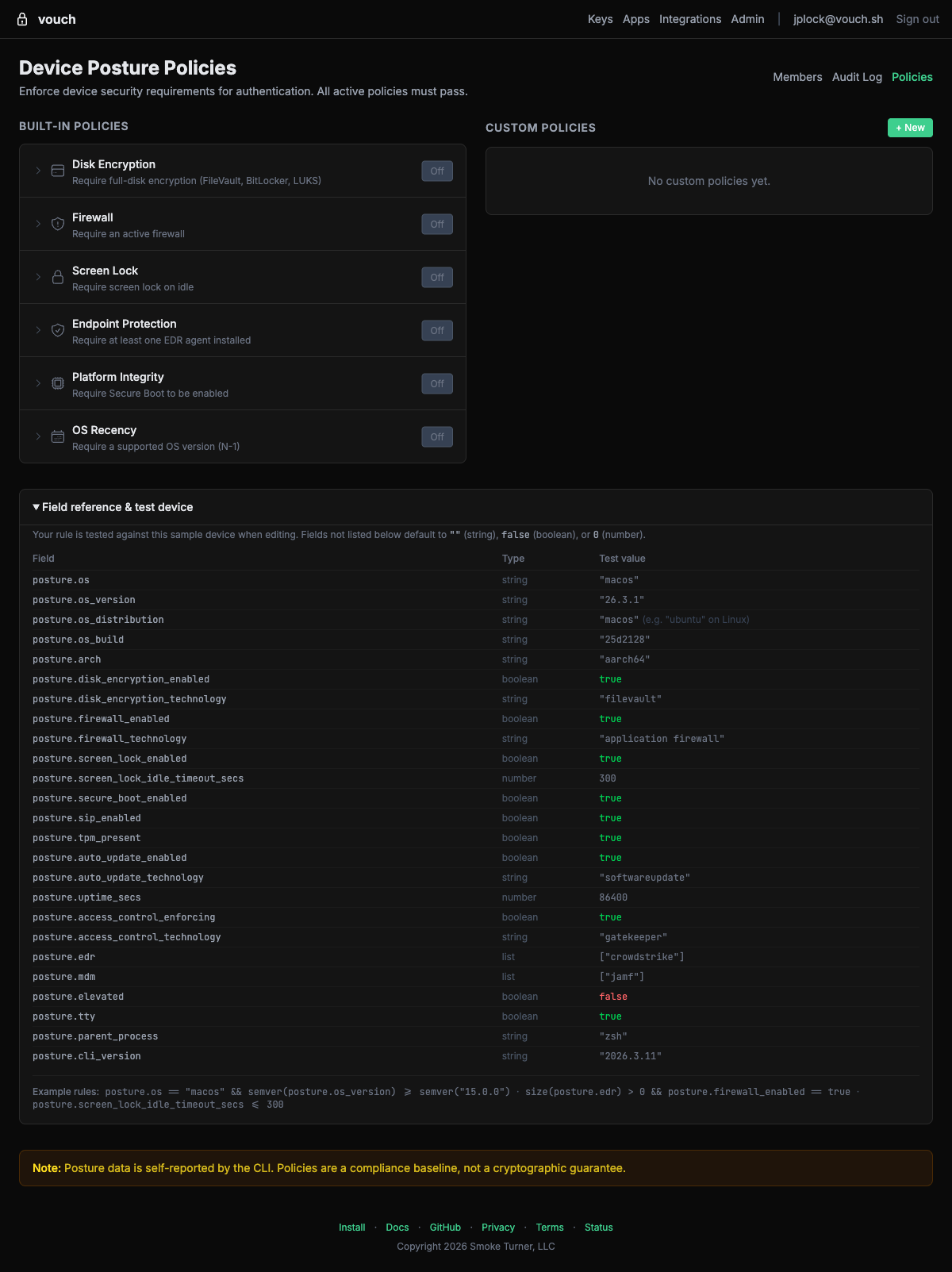
Every attribute is always present in the evaluation context. When a client does not report one, it takes a type-appropriate default — false, "", 0, or [] — so a rule never errors on a missing field. The corollary: a missing attribute looks identical to a negative one. Requiring context.device.tpm_present == true also fails every client too old to report it.
| Field | Type | Description |
|---|---|---|
os | string | Operating system: "macos", "linux", "windows" |
os_version | string | OS version string — compare os_version_num instead |
os_version_num | long | os_version encoded as major*1000000 + minor*1000 + patch ("15.3.1" → 15003001); -1 when unparseable |
os_distribution | string | OS distribution name (e.g., "ubuntu") |
os_build | string | OS build identifier |
os_build_num | long | os_build parsed as an integer ("26100" → 26100); -1 when unparseable |
arch | string | CPU architecture: "aarch64", "x86_64" |
disk_encryption_enabled | bool | Full-disk encryption active |
disk_encryption_technology | string | Encryption technology detected (e.g., "bitlocker") |
firewall_enabled | bool | OS firewall active |
firewall_technology | string | Firewall technology detected |
screen_lock_enabled | bool | Screen lock configured |
screen_lock_idle_timeout_secs | long | Screen lock idle timeout in seconds |
secure_boot_enabled | bool | Secure boot active |
sip_enabled | bool | System Integrity Protection active (macOS) |
tpm_present | bool | TPM chip detected |
tpm_version | string | TPM version (e.g., "2.0") |
edr | set | EDR agent names — test with context.device.edr.contains("crowdstrike") |
edr_count | long | Number of EDR agents detected |
mdm | set | MDM agent names detected |
mdm_count | long | Number of MDM agents detected |
auto_update_enabled | bool | Automatic OS updates enabled |
auto_update_technology | string | Auto-update mechanism detected |
access_control_enforcing | bool | MAC enforcement active (SELinux/AppArmor/SIP) |
access_control_technology | string | MAC technology detected |
uptime_secs | long | System uptime in seconds |
elevated | bool | Running with elevated privileges |
tty | bool | Running in a terminal |
parent_process | string | Parent process name |
cli_version | string | Vouch CLI version |
collected_at | string | When the posture data was collected |
Always compare os_version_num, never the os_version string — lexical comparison puts "10.0.0" before "9.0.0"; the numeric encoding does not. The in-app field reference at the bottom of the policies page is generated from the same catalog that drives the builder, with each field’s type and its value on the sample test device.
Writing a history policy
A when temporal { … } clause reads the user’s recent events. Windows are required, capped at 24 hours, and only && and ! are available inside the block (write separate policies for “or”):
// Require a successful login within the last 30 minutes before exchanging tokens
forbid (principal, action == Vouch::Action::"ExchangeToken", resource)
when temporal {
    !(formerly within 30m Vouch::Action::"Login"::response{ output.result: true })
};

// Cap SSH certificate issuance at 5 per hour
forbid (principal, action == Vouch::Action::"IssueToken", resource)
when temporal {
    exists (n: Long). (
        (count_within(1h, Vouch::Action::"IssueCredential"::response{ input.kind: "ssh" })) == n
        && n >= 5
    )
};
Aggregations must be compared inside an exists (n: Long). ((count_within(…)) == n && n >= K) binding — that shape is what lets the count be thresholded.
The braces after an event name filter which past events count. A literal value selects events (output.result: true means successful logins only); a context reference requires the field to match the current request (input.ip: context.input.ip, as the built-in Exchange IP Consistency policy does).
| Event | Matchable fields |
|---|---|
Vouch::Action::"Login"::response | input.ip, input.user_agent, output.result (boolean) |
Vouch::Action::"IssueToken"::response | input.ip, input.client_id |
Vouch::Action::"ExchangeToken"::response | input.ip, input.client_id, input.audience |
Vouch::Action::"Logout"::response | none — the event itself is the signal |
Vouch::Action::"RevokeToken"::response | none |
Vouch::Action::"IssueCredential"::response | input.kind — one of "ssh", "aws", "github" |
The policy editor validates history policies but cannot evaluate them: the sample test device has no history, so validation summarizes in prose what the rule will deny rather than reporting a pass or fail. Verify these against a real account in a staging organization.
Rewriting a CEL policy
CEL expressions were bare booleans; Dogwood policies are forbid rules, and posture attributes moved from posture.* to context.device.*. A CEL rule that read:
posture.disk_encryption_technology == "bitlocker"
becomes:
forbid (principal, action == Vouch::Action::"IssueToken", resource)
unless { context.device.disk_encryption_technology == "bitlocker" };
Note the inversion: CEL expressions stated what must be true to pass; a forbid … unless rule states the same requirement, and denies when it is not met. Version comparisons that used semver(posture.os_version) use the precomputed context.device.os_version_num field, and set-size checks like edr.size() > 0 use context.device.edr_count > 0.
Validating policies
Every rule is type-checked against the posture schema when you save it — a typo’d field name is a save-time error, not a silent miss at login. The policy editor also dry-runs device rules against sample posture data before you save, evaluated against the decision point the rule targets (an exchange rule is evaluated as an exchange, not as a login). Always validate custom policies before enabling them — a syntactically valid rule that is semantically wrong fails closed and locks users out.
Test at minimum: a device that should pass, a device that should fail, and a device reporting nothing at all (the “old CLI” case).
Managing policies
Policies are managed from the Vouch admin dashboard by organization administrators.
Activating a pre-configured policy
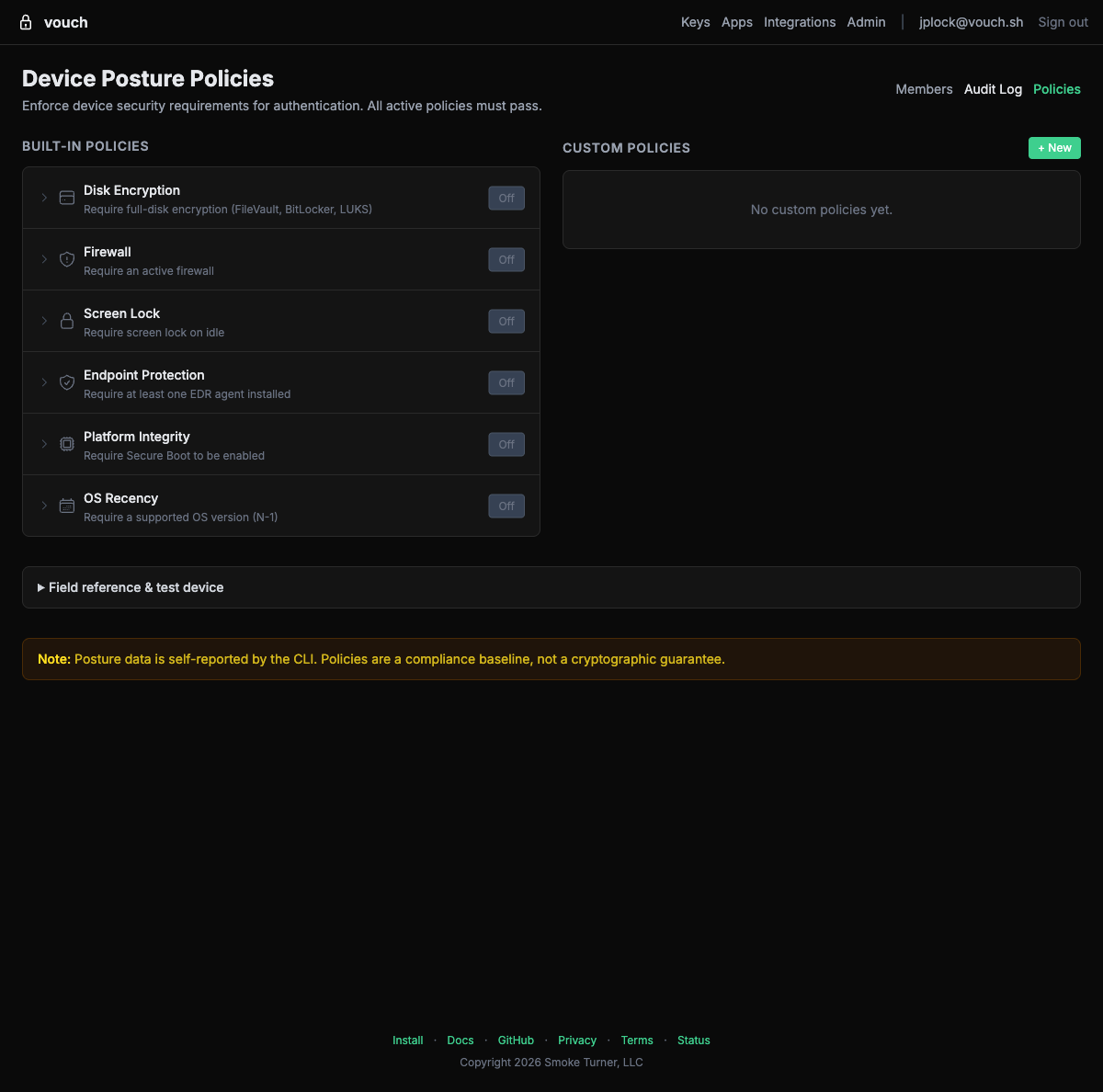
- Open the Vouch admin dashboard and navigate to Policies. The page shows one list of every policy — built-in and custom, active first, each tagged with its source. A policy’s Dogwood source is behind its row’s expando.
- Toggle a policy to Active to begin enforcement.
- The policy takes effect immediately for all subsequent token requests.
Creating a custom policy
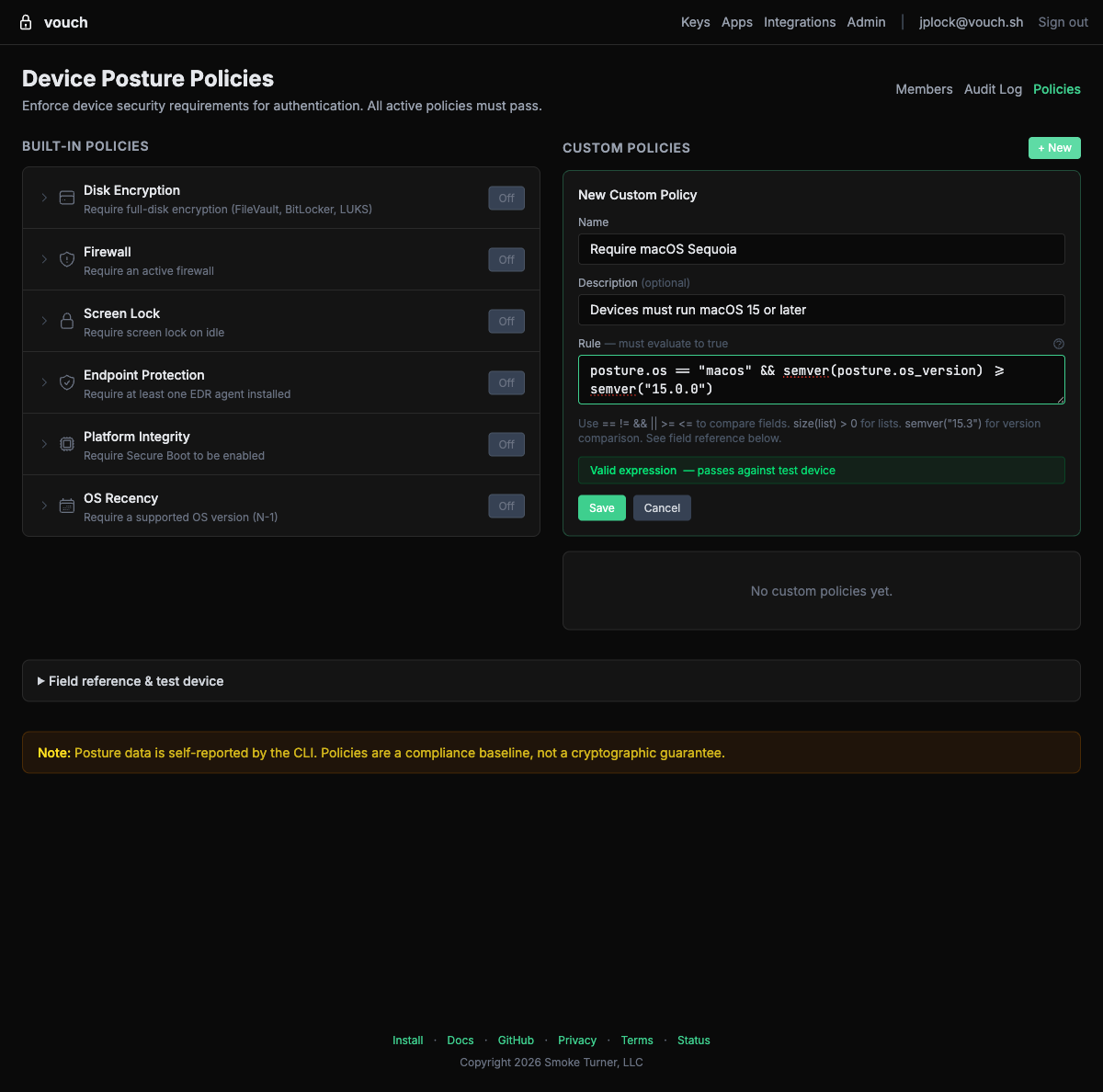
- In the Policies page, click + New.
- Enter a name and description for the policy.
- Compose the rule in the guided builder — decision point, then conditions from the field, operator, and value dropdowns — or switch to Edit as text for raw Dogwood.
- The builder previews the generated rule and validates it continuously; device rules are also dry-run against sample posture data.
- Save and activate the policy.
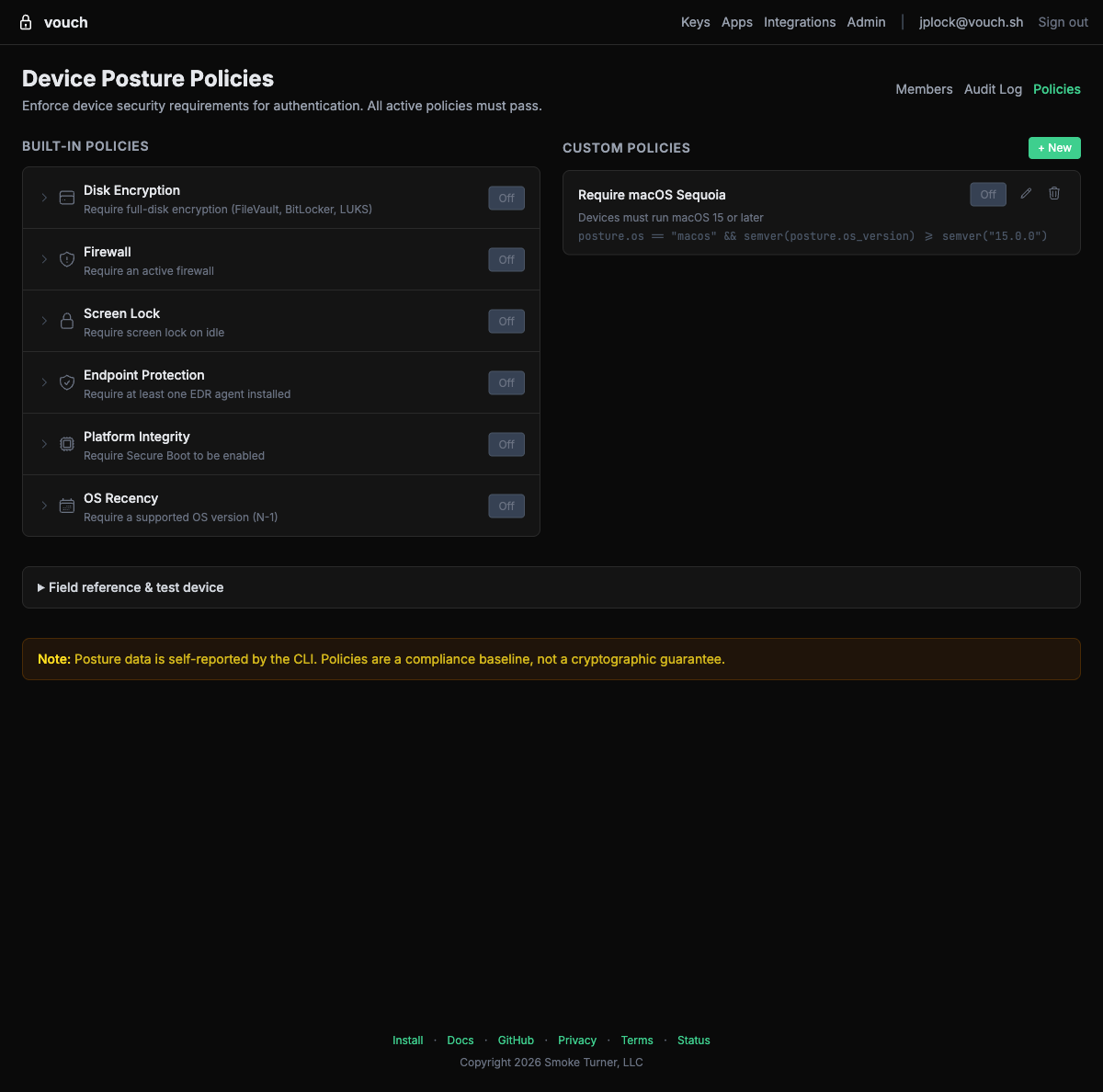
Once saved, custom policies appear alongside the built-in policies with controls to toggle, edit, or delete them:
Policy limits
- An organization can have up to 20 custom policies, with 10 active at the same time alongside any of the built-ins.
- All active policies are evaluated using AND logic — every active policy must pass for login to succeed.
- Policies apply to all members of the organization. There is no per-user or per-group policy targeting.
Deactivating a policy
Toggle a policy to Inactive from the Policies page. The policy is retained but no longer evaluated during login. This is useful for temporarily relaxing requirements during an incident or rollout — and, since the active flag is independent of the policy’s existence, you can also stage a new policy and turn it on later.
Audit events
Policy activity is recorded in the audit log:
| Event | Trigger |
|---|---|
policy_denied | A policy denied token issuance or exchange |
admin_policy_create | Custom policy created |
admin_policy_update | Custom policy edited |
admin_policy_delete | Custom policy deleted |
admin_policy_toggle | Any policy enabled or disabled |
Policy events are retained permanently, so the record of when a policy was relaxed never expires.
Practical examples
Example 1: Basic security baseline
Activate three pre-configured policies to establish a minimum security standard:
- Disk encryption — Protects data at rest on lost or stolen devices.
- Firewall — Prevents unauthorized network access to local services.
- Screen lock — Protects unattended machines.
These three policies cover the most common baseline requirements. Developers who fail any check see specific remediation instructions for their operating system.
Example 2: Regulated environment
For teams subject to SOC 2, HIPAA, or similar compliance frameworks, activate the full set of device policies:
- Disk encryption
- Firewall
- Screen lock
- Endpoint protection (EDR)
- MDM enrollment
- Platform integrity
- OS recency (only if your fleet has no Linux devices — it denies all of them)
This requires every developer machine to pass the full policy set above before it can obtain credentials for production infrastructure. Consider adding the Failed Login Burst and Issuance Rate Limit history policies to contain credential-stuffing and runaway automation.
Example 3: Contractor restrictions
If contractors use personal machines that may not have your corporate EDR, activate the pre-configured MDM enrollment policy instead of Endpoint protection. It verifies the device is managed by your organization without requiring a specific EDR product.
Example 4: Enforce recent reboots for kernel updates
After a critical kernel vulnerability (like a zero-day), temporarily add a custom policy requiring a recent reboot:
forbid (principal, action == Vouch::Action::"IssueToken", resource)
unless { context.device.uptime_secs < 259200 };
This requires all machines to have rebooted within the last 3 days (259,200 seconds), ensuring kernel patches are loaded. Deactivate the policy once the patch cycle is complete.
Example 5: Platform-specific requirements
Create a custom policy that applies different rules per operating system:
forbid (principal, action == Vouch::Action::"IssueToken", resource)
unless {
    (context.device.os == "macos" && context.device.sip_enabled
        && context.device.disk_encryption_enabled) ||
    (context.device.os == "linux" && context.device.access_control_enforcing
        && context.device.disk_encryption_enabled) ||
    (context.device.os == "windows" && context.device.secure_boot_enabled
        && context.device.tpm_present && context.device.disk_encryption_enabled)
};
This enforces platform-appropriate integrity checks: SIP on macOS, SELinux/AppArmor on Linux, and Secure Boot + TPM on Windows — plus disk encryption on all platforms.
What developers see
When a posture policy fails, the Vouch CLI displays a clear error message with OS-specific remediation instructions:
$ vouch login
🔑 Touch your YubiKey...
✓ Identity verified

✗ Device posture check failed

  Policy: Disk encryption required
  Status: disk encryption is not enabled

  To fix this on macOS:
    System Settings → Privacy & Security → FileVault → Turn On

  Contact your administrator if you believe this is an error.
The error message includes:
- Which policy failed
- The current device state
- Step-by-step remediation instructions specific to the developer’s operating system
Developers can use vouch posture to inspect their device’s posture at any time without attempting a login.
FAQ
Does posture collection slow down login?
No. Posture collection runs in parallel with the FIDO2 assertion and has a 2-second timeout. If collection takes longer than 2 seconds, login proceeds without posture data — but if active policies exist, this triggers fail-closed enforcement and access is denied.
Can developers bypass posture checks?
No. Posture data is evaluated server-side. The CLI cannot skip collection (the server enforces fail-closed), and the posture data cannot be spoofed because it is sent alongside the FIDO2 hardware assertion over TLS.
Do I need to update the CLI?
Yes. Developers must be running a version of the Vouch CLI that supports posture collection (v2026.3.11 or later). Older CLI versions do not send posture data, and active policies will deny access due to fail-closed enforcement.
What if a developer runs Linux without a desktop environment?
Signal detection is best-effort. On headless Linux machines, screen lock detection returns false (no desktop environment to lock). If you activate the screen lock policy, consider creating a custom policy that exempts headless environments:
forbid (principal, action == Vouch::Action::"IssueToken", resource)
unless { context.device.screen_lock_enabled || !context.device.tty };
Can I test policies before enforcing them?
Yes. Every rule is type-checked against the posture schema at save time, and the policy editor dry-runs device rules against sample posture data. You can also ask developers to run vouch posture --format json and share the output to verify their machines would pass before you activate a policy.
What happened to my CEL policies?
The CEL engine was replaced by Dogwood (opens in new tab) in v2026.8.3. Custom policies written in CEL are flagged on the policies page and fail closed at login until re-authored — see Rewriting a CEL policy. Built-in policies ship with the server and are unaffected; only custom policies need attention.